Bloom Desktop

WordPress plugin · v1.0.0

Bloom Desktop Store Locator

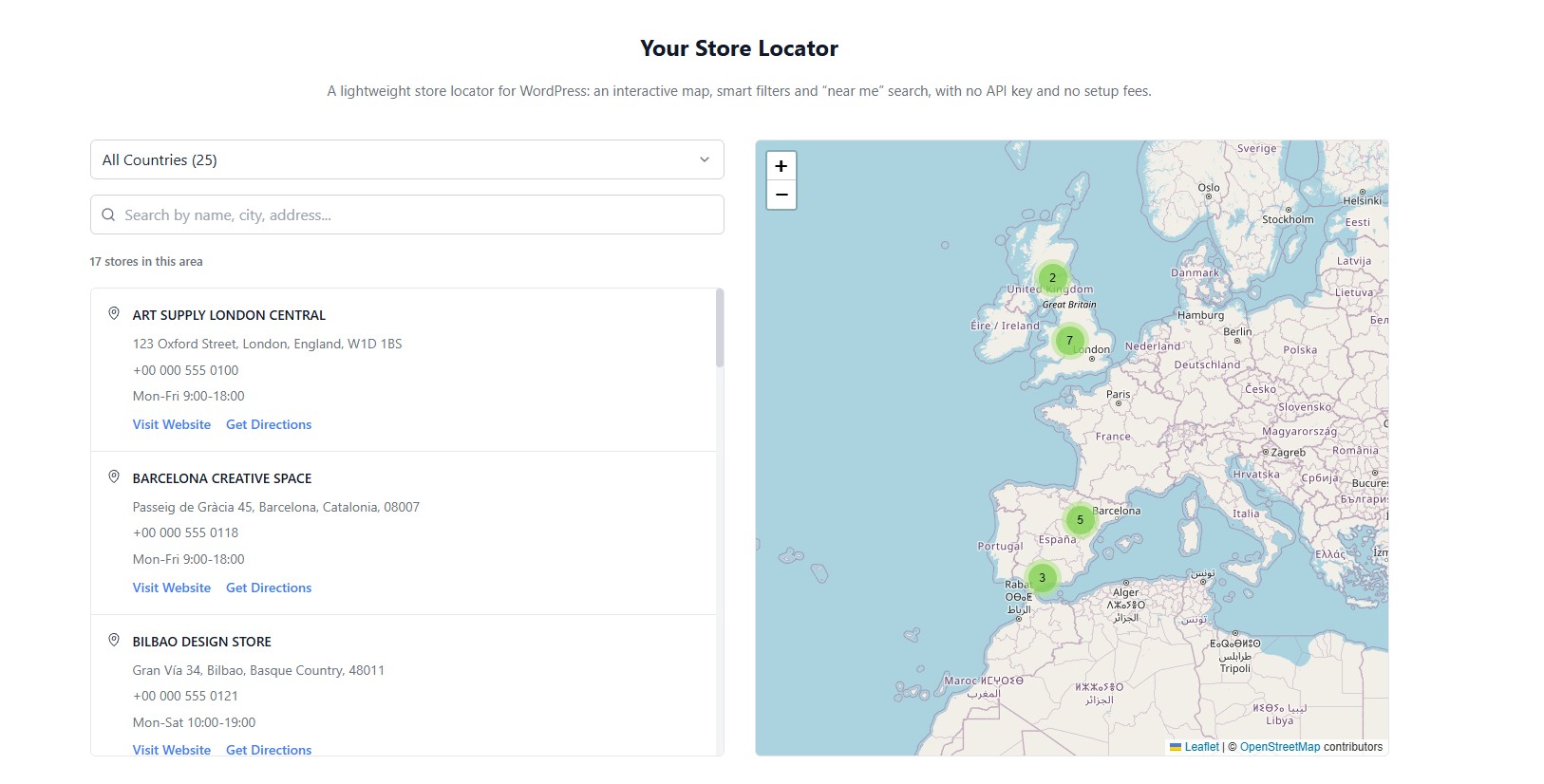
A lightweight store locator for WordPress — interactive map, smart filters and “near me” search, fully customisable to your brand, with no API key and no fees.
Coming soon to WordPress.orgNeed a custom version?
Bloom Desktop Store Locator on the front end: filters, store list and map

Display your store or office locations on an interactive map. Self-contained, with no third-party plugin dependencies (no ACF needed), and works with any properly coded WordPress theme.

Features

  • ✓Interactive map powered by Leaflet and OpenStreetMap — free, no API key required
  • ✓Country filter with store count per country
  • ✓State / region filter, populated from the selected country
  • ✓Optional city filter
  • ✓The list follows the map, showing the stores in the visible area with a result counter
  • ✓Search by name, city, address or postcode
  • ✓“Use my location” sorts stores by distance — only asks after the visitor clicks
  • ✓“Get Directions” link, phone and opening hours for every store
  • ✓Marker clustering for maps with many stores
  • ✓Infinite scroll for large lists (loads in batches of 20)
  • ✓CSV import (up to 500 rows per upload, updates instead of duplicating) and CSV export
  • ✓Coordinates lookup from the store address in the admin
  • ✓Shortcode and Gutenberg block
  • ✓Fully responsive, with contained or full-width layout
  • ✓Customisable styles: your own map pin, layout options and a CSS guide for matching your brand with Additional CSS

Installation

  1. 1Upload the bloom-desktop-store-locator folder to /wp-content/plugins/, or install it from the Plugins screen in WordPress.
  2. 2Activate the plugin through the Plugins screen.
  3. 3Go to Store Locator → Settings to configure global settings.
  4. 4Go to Store Locator → Add New Store to start adding your locations.
  5. 5Add the Store Locator block to a page, or use the shortcode below.

Usage

Use the block in the editor, or the shortcode anywhere — including Elementor, Divi and WPBakery.

[bloom_desktop_store_locator title="Our stores in Spain" default_country="Spain" lock_country="1"]
title
Heading shown above the locator.
description
Intro text under the heading.
default_country
Country selected when the page loads.
lock_country
Set to 1 to only show stores from that country.
footer
Text shown below the locator.

Frequently asked questions

Can I use this with any WordPress theme?

Yes. The plugin is theme-independent and uses its own styles prefixed with bloom-desktop-.

Do I need Advanced Custom Fields (ACF)?

No. The plugin uses native WordPress metaboxes and has no third-party plugin dependencies.

How many stores can I add?

There is no hard limit. The list loads in batches as the visitor scrolls, the map groups nearby markers, and the list can follow the visible map area so large catalogues stay manageable.

Can I show different countries on different pages?

Yes. Each block or shortcode has its own title, description, default country, “only show this country” option and footer text, so one page can be “Our stores in Spain” and another “Our stores in the United Kingdom”.

Is the map service free?

Yes. The plugin uses Leaflet (open source) and OpenStreetMap tiles (free). No API key is required.

How does the CSV import work?

Go to Store Locator → Settings → Import & Export. Required columns: title, latitude, longitude, country. Optional: address, city, state, zipcode, phone, website, hours. A row whose title and coordinates match an existing store updates it instead of creating a duplicate.

What happens to my stores if I delete the plugin?

Nothing, unless you enable “Delete all stores and settings when the plugin is deleted” in the settings. Deactivating the plugin never deletes data.

External services

This plugin relies on the following third-party services. None of them receives any data until the action described happens.

OpenStreetMap tiles

Map images are loaded from tile.openstreetmap.org every time a page with the store locator is displayed. The visitor's IP address and the map area being viewed are sent to OpenStreetMap as part of those requests.

Terms of use ↗Privacy policy ↗

OpenStreetMap Nominatim

Admin only. When an editor clicks “Get coordinates from address”, the typed address is sent to nominatim.openstreetmap.org to obtain its coordinates. Site visitors never contact this service.

Terms of use ↗Privacy policy ↗

Google Maps

Each store has a “Get Directions” link that opens Google Maps in a new tab with the store's coordinates. Nothing is sent to Google unless the visitor clicks the link.

Terms of use ↗Privacy policy ↗

Privacy

  • The plugin never asks for the visitor's location on page load.
  • If the visitor clicks “Use my location”, the browser coordinates are sent to your own site's REST API to sort stores by distance. They are not stored and not sent to any third party. The button can be disabled in the settings.
  • If you use this plugin, disclose the external services above in your site's privacy policy.

Third-party libraries

Bundled in minified form. Non-minified sources:

Changelog

1.0.0

  • Initial release
  • Interactive map with Leaflet and OpenStreetMap, with marker clustering
  • Country, state / region and city filters, and search by name, city, address or postcode
  • Store list that follows the visible map area, with a result counter
  • “Use my location” button that sorts stores by distance
  • “Get Directions” link, phone and opening hours for every store
  • Shortcode and Gutenberg block
  • CSV import and export
  • Coordinates lookup from the store address
  • Custom map pin and layout options, and a CSS guide for styling with Additional CSS
  • Hardened public store queries and the CSV export
  • Length limits on store fields and a size limit on CSV uploads

Support

Questions, bugs or feature requests? Email [email protected].